
Rails allows you to manage your CSS, JavaScript and images through the assets pipeline. Why would you want to manage your files this way? The assets pipeline lets you organize your CSS and JavaScript files with a file called the “manifest” file. For CSS the file is called, “application.css” and for JavaScript it is called, “application.js”. These two files are where you would link all of your CSS and JS files for your entire application. For example instead of linking your CSS in the head of your HTML document you can put all your CSS in the “application.css” file and those files will linked to your HTML documents. If you had many HMTL documents that required the same CSS file you would only have to write it once in the “application.css” file. If you require all of your CSS and JavaScript files through the manifest file they will compressed into one file. (The CSS will be compressed into one file and the same would go for your JavaScript.) This is great, because if you are only rendering one CSS file and one JavaScript file when your application gets loaded in the browser your application is going to load much faster. Basically one large CSS file and JavaScript file is better than ten small files.
Here are some basics about the “application.css” file: 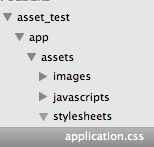
- When you first create your Rails application your “application.css” file is already in your app! It can be found in the app/assets/stylesheets directory.
- When you open up this file you should see the following:
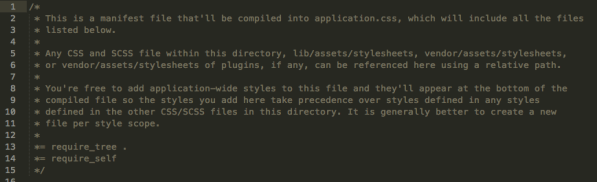
- Most of what is here are comments about the file and can be delete. (All the comments are from line 2 – line 11).
- Line 13 has: “*= require_tree .” This means require all CSS files that are in this directory.
- When you use “*= require_tree .” your CSS files are going to be loaded in the order that they are currently in. This means that if your CSS files are being listed alphabetically that they will be required in that same order. If you want your CSS files loaded in a certain order then you would have to list them here manually.
- To list your CSS files manually you would have to write them the following way.
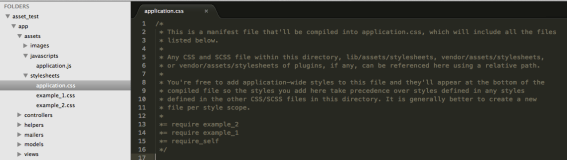
- Above I took out “require_tree .” and instead wrote out the names of my CSS files in the order that I would like them to be loaded in. If I didn’t do this and kept “require_tree .” then the file would have been loaded as “example_1” then “example_2”.
- Note: you do not need to include the file extensions when you require your files in the manifest file.
- Line 14 has: “*= require_self” This means that the file is going to require itself!
Here the “application.js” file: 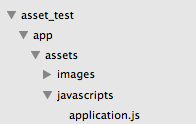
- The “application.js” file can be found in the app/assets/javascripts directory.
- Here is how the “application.js” file will look when you first open it:
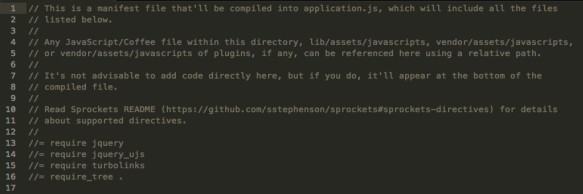
- It is pretty similar to our “application.css” file. This file also contains a “require_tree .” which will do the same thing as in our “application.css” file.
- This file also has comments which you can remove if you would like. (Comments are from line 1 – line 11)
- Inside your “application.js” file there are some default JavaScript files that are going to be loaded into your application.
- What if you wanted to load your JavaScript files in a specific order? You can require them individually and remover the “require_tree .”.

How do we tell if our files are being required?
- Make sure that you have your Rails server running. Type in “rails s” in the root directory of your application in your terminal.
- Go to view your application in the browser. Usually the default port number is “3000”, but you can always double check what port you are on by looking at your terminal when you run the rails server.

- Above I typed in “localhost:3000” which is where my application is running on my local server. Then I typed in “/?debug_assets=1”
- After you type that in and press enter you will want to view the source code for your application.
- To view the source code you go to the menu bar for your browser, go to “view”, then “developer” and click “view source”. (This is for Chrome)
- After you click “view source” a new window should appear with all the source code for the page you are viewing. Here is my source code:
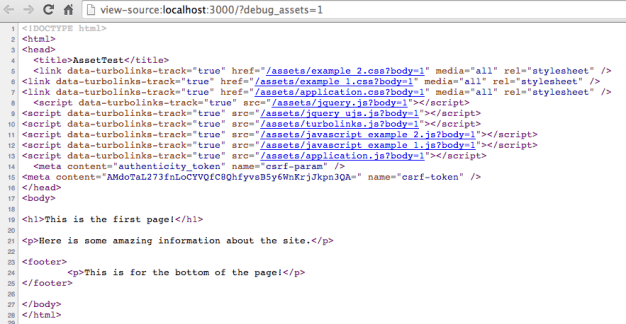
- Notice that all my CSS and JavaScript are included in the “head” section of my html.erb file. The only place that I had these files listed in my application was in my manifest files.
- Also notice that all the files are listed in the order that I have specified them in. “example_2.css” being listed before “example_1.css” and the same is happening for my JavaScript files.
Image if I had a ton of CSS and JavaScript files that I wanted to include on multiple pages and wanted them in a certain order when they were loaded. By using the asset pipeline it is very easy to make sure all my files are included and in the correct order.
 She learns to code in Brooklyn