Working with Qunit

mic

Have you ever been working on a site and think everything is going great until you view your site locally? Maybe you find your images are no longer showing up or an element isn’t floating the way you thought it would. You can see on the browser what the problem is, but maybe it takes you a lot longer to find what the cause of the problem is when you look at your code. There have been times when a simple misplaced semicolon has caused hours of pain. This is why unit testing is so important. You can create tests for your code and if something breaks while you are developing your site the test will alert you that something has broken. This makes it a lot easier to go back to your code and fix the problem. There are many ways to write tests for your code depending on what language you are working with. I want to focus on JavaScript in this blog post so we are going to look at QUnit for creating tests.

A good place to start is to look at the documentation for QUnit. Here you will be able to find examples as well as download the documents you need to create your own test. You will have to download the first two files and place them into your sites directory.
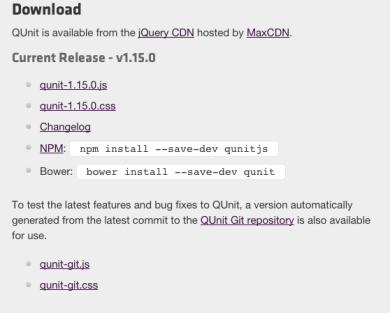
Screen Shot 2014-11-30 at 6.33.36 PM

We are also going to be referring back to the API documentation a lot, because it contains a full list of all the assertions we can use to create tests. What if you wanted to make sure that two objects were equal? You could use the “propEqual” assertion. Below is an example of using “propEqual”.

First we need to set up our html file.

<!DOCTYPE html>
<html>
<head>
     <meta charset="utf-8">
     <title>propEqual Example</title>
     <link rel="stylesheet" href="qunit-1.15.0.css">
</head>
     <body>

          <div id="qunit"></div>
          <div id="qunit-fixture"></div>

          <script src="qunit-1.15.0.js"></script>
          <script src="propEqualTest.js"></script>
     </body>
</html>

Above in the <head> tag of the document we have a link to the css file that we downloaded from the QUnit site. At the bottom of the <body> tag we are linking to two JavaScript files. The first file is also downloaded from the QUnit site and the second file is one that we are going to create all of our tests in. Lets add some tests in the “propEqualTest.js” file.

test('testing propEqual', function() {
 propEqual( {animal: 'tiger'}, {animal: 'tiger'}, 'same objects, test passes');
 propEqual( {fish: 'goldfish'}, {fish: 'dog'}, 'not the same, test fails');
})

Above we have a function called “test” which gets called from the “qunit-1.15.0.js” file. This function has two arguments. The first argument is a string which is just labeling the test we are creating. The second argument is a callback function which is where we are using “propEqual” to create the test. The “propEqual” assertion is defined in the API documentation. What we are doing above is comparing the first two arguments of the “propEqual” assertion with each other. If the objects are the same the test will pass, because it evaluates to true and if they don’t match they will evaluate to false. Now lets look at how the html document looks when we open it in a browser.

Screen Shot 2014-11-30 at 7.07.00 PM

The first test passed and we see that our message “same objects, test passes” in green. The second test failed so we see our message “not the same, test fails” appear in red. We also see what the differences were between the two objects which caused our test to fail. You can see how helpful writing tests becomes when working on developing a site.

Below is a list of resources for QUnit:

Make a carousel using Javascript

horse

There are many ways to create slideshows for your website. You could use the carousel that Bootstrap has in their JavaScript section. The JavaScript library jQuery is also another great way to create a carousel. In this post though we are going to use JavaScript for the functionality of our carousel.

First we are going to create an html document to give our carousel a home.


<!DOCTYPE html>
<html>
     <head>
          <title>Slideshow</title>
          <link rel="stylesheet" type="text/css" href="css/styles_slideshow.css">
     </head>
     <body onload='runSlideshow()'>

          <header>
               <h1>JavaScript Slideshow<h1>
          </header>

          <div id="viewer">
               <div>
                    <img id="arrow_left" src="img/left_arrow.png" alt="left arrow">
               </div>
               <div>
                    <img id="arrow_right" src="img/right_arrow.png" alt="right arrow">
               </div>
               <div class="image">
                    <img id="image_1" src="img/image_1.JPG" alt="beach with hills in the background"/>
               </div>
          </div>

          <footer>
               <p>Christina Cannito - JavaScript Slideshow - 2014</p>
          </footer>
     <script type="text/javascript" src="js/slideshow.js"></script>
     </body>
</html>

Above we have a simple html page to get us started on our carousel. Inside the <head> tag we have the <title> of the html page and a link to a CSS style sheet. After the head we go to the <body> tag where there is “onload=’runSlideshow()'”. What this means is that as soon as the body loads the “runSlideshow” function is going to be called. That function is defined in our JavaScript file, which we will be looking at shortly. Inside the body we have a <header> tag,  a div with an id of “viewer” which has several divs inside of it, a <footer> tag and lastly a link to our JavaScript file.

The div with the id of “viewer” is going to be where all the images for our carousel will be displayed. The next two divs inside “viewer” hold our left and right arrows. Lastly there is a div which holds a placeholder image with the class of “image”. Now lets see how JavaScript works with this page to set the carousel in motion.


"use strict";

var index_num = 0;
var image_array = ["image_1", "image_2", "image_3", "image_4", "image_5"];
var leftClick = document.getElementById('arrow_left');
var rightClick = document.getElementById('arrow_right');
var imageViewer = document.getElementById('image_1');

function createLinkedImage(domContainer, imgArray, index){
     domContainer.src = './img/' + imgArray[index] + '.JPG';
}

function runSlideshow() {
     leftClick.addEventListener('click', function(){
          if (index_num === 0) {
               index_num = image_array.length - 1;
               createLinkedImage(imageViewer, image_array, index_num);
          } else {
               index_num = index_num - 1;
               createLinkedImage(imageViewer, image_array, index_num);
          }
     }, true)

     rightClick.addEventListener('click', function(){
          if (index_num === image_array.length) {
               index_num = index_num - 1;
               createLinkedImage(imageViewer, image_array, index_num);
               index_num = 0;
          } else {
               createLinkedImage(imageViewer, image_array, index_num);
               index_num = index_num + 1;
          }
     }, true)

     setInterval(function(){
          if (index_num > image_array.length - 1) {
             index_num = 0;
             createLinkedImage(imageViewer, image_array, index_num);
          }
          createLinkedImage(imageViewer, image_array, index_num);
          index_num = index_num + 1;
     }, 3000);
}

Lets start by looking at the variables that are defined at the top of the document.

  • var index = 0; This is how we are going to keep track of the index number as we iterate over the array of images that we want to display.
  • var image_array = [“image_1”, “image_2”, “image_3”, “image_4”, “image_5”]; An array of all the images that we are going to display.
  • var leftClick = document.getElementById(‘arrow_left’); We are targeting the the element in the html document with the id of “arrow_left”.
  • var rightClick = document.getElementById(‘arrow_right’); Here we are doing the same thing as “leftClick”, but we are targeting the element with the id of “arrow_right”.
  • var imageViewer = document.getElementById(‘image_1’); Targeting the element with the id of “image_1” which is going to display our images.

We are going to use these variables throughout our JavaScript document. This is going to save us a lot of writing, because we can simple plug in these variables where we need them. Next we see a function called “createLinkedImage”. As we iterate through the array we are going to create new links to those images. The way the links are generated is by what we are passing into this function. This function takes in “domContainer” which is where we want the images to be displayed and we saved that information to the variable “imageViewer”. Also we have to pass in where we get the image information, which is inside our “imageArray”. The last argument we pass into this function is the “index”, which is going to be the index number. The index number is going to determine what image in the array will appear. This function gets called inside the “runSlideshow” function.

The “runSlideshow” function is going to get called as soon as the body of our html page is loaded. If a person does not click on either the left or right arrows our “setInterval” function is going to run. Inside this function we have a conditional statement. That statement says if the index number is greater than the amount of elements in the array we are going to reset the index back to zero. If the index number is less than the amount of elements in the array we will show that image and add one to the index number.

There are two click events that will handle if a person clicks on the left or right arrows. We are always updating the index_num variable in the “setInterval” function and we use that same variable in our two click events. If a person clicks on the right arrow while on the first object in the array we will show that image by calling the “createLinkedImage” function then add one to the index_num variable. If a person clicks left we will subtract one.

Asset Pipeline

assets_pipeline

Rails allows you to manage your CSS, JavaScript and images through the assets pipeline. Why would you want to manage your files this way? The assets pipeline lets you organize your CSS and JavaScript files with a file called the “manifest” file. For CSS the file is called, “application.css” and for JavaScript it is called, “application.js”. These two files are where you would link all of your CSS and JS files for your entire application. For example instead of linking your CSS in the head of your HTML document you can put all your CSS in the “application.css” file and those files will linked to your HTML documents. If you had many HMTL documents that required the same CSS file you would only have to write it once in the “application.css” file. If you require all of your CSS and JavaScript files through the manifest file they will compressed into one file. (The CSS will be compressed into one file and the same would go for your JavaScript.) This is great, because if you are only rendering one CSS file and one JavaScript file when your application gets loaded in the browser your application is going to load much faster. Basically one large CSS file and JavaScript file is better than ten small files.

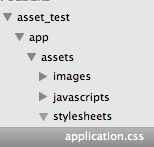
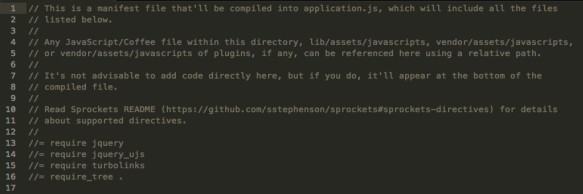
Here are some basics about the “application.css” file: Screen Shot 2014-08-03 at 2.32.22 PM

  • When you first create your Rails application your “application.css” file is already in your app! It can be found in the app/assets/stylesheets directory.
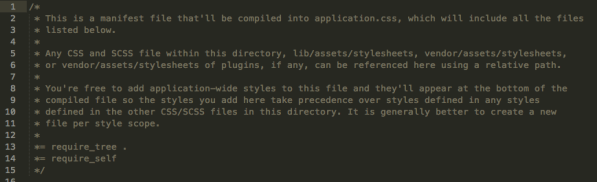
  • When you open up this file you should see the following: Screen Shot 2014-08-03 at 2.35.01 PM
  • Most of what is here are comments about the file and can be delete. (All the comments are from line 2 – line 11).
  • Line 13 has: “*= require_tree .” This means require all CSS files that are in this directory.
    • When you use “*= require_tree .” your CSS files are going to be loaded in the order that they are currently in. This means that if your CSS files are being listed alphabetically that they will be required in that same order. If you want your CSS files loaded in a certain order then you would have to list them here manually.
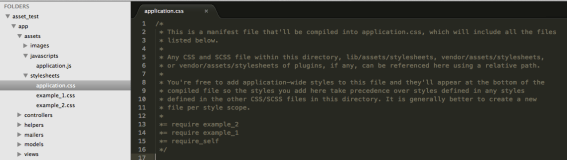
    • To list your CSS files manually you would have to write them the following way. Screen Shot 2014-08-03 at 2.51.38 PM
    • Above I took out “require_tree .” and instead wrote out the names of my CSS files in the order that I would like them to be loaded in. If I didn’t do this and kept “require_tree .” then the file would have been loaded as “example_1” then “example_2”.
    • Note: you do not need to include the file extensions when you require your files in the manifest file.
  • Line 14 has: “*= require_self” This means that the file is going to require itself!

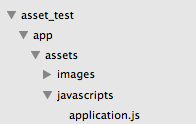
Here the “application.js” file: Screen Shot 2014-08-03 at 2.56.08 PM

  • The “application.js” file can be found in the app/assets/javascripts directory.
  • Here is how the “application.js” file will look when you first open it: Screen Shot 2014-08-03 at 2.57.43 PM
  • It is pretty similar to our “application.css” file. This file also contains a “require_tree .” which will do the same thing as in our “application.css” file.
  • This file also has comments which you can remove if you would like. (Comments are from line 1 – line 11)
  • Inside your “application.js” file there are some default JavaScript files that are going to be loaded into your application.
  • What if you wanted to load your JavaScript files in a specific order? You can require them individually and remover the “require_tree .”.Screen Shot 2014-08-03 at 3.02.58 PM

How do we tell if our files are being required?

  • Make sure that you have your Rails server running. Type in “rails s” in the root directory of your application in your terminal.
  • Go to view your application in the browser. Usually the default port number is “3000”, but you can always double check what port you are on by looking at your terminal when you run the rails server. Screen Shot 2014-08-03 at 3.14.40 PM
  • Above I typed in “localhost:3000” which is where my application is running on my local server. Then I typed in “/?debug_assets=1”
  • After you type that in and press enter you will want to view the source code for your application.
  • To view the source code you go to the menu bar for your browser, go to “view”, then “developer” and click “view source”. (This is for Chrome)
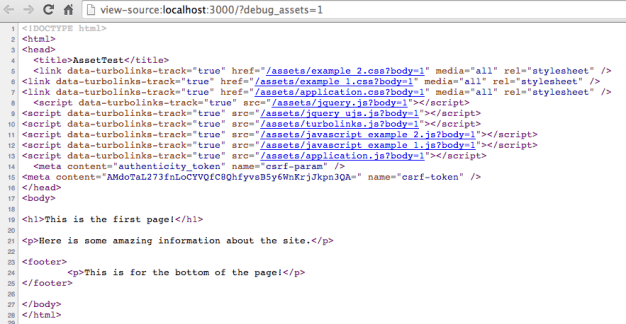
  • After you click “view source” a new window should appear with all the source code for the page you are viewing. Here is my source code: Screen Shot 2014-08-03 at 3.18.26 PM
  • Notice that all my CSS and JavaScript are included in the “head” section of my html.erb file. The only place that I had these files listed in my application was in my manifest files.
  • Also notice that all the files are listed in the order that I have specified them in. “example_2.css” being listed before “example_1.css” and the same is happening for my JavaScript files.

Image if I had a ton of CSS and JavaScript files that I wanted to include on multiple pages and wanted them in a certain order when they were loaded. By using the asset pipeline it is very easy to make sure all my files are included and in the correct order.

objects in javascript

books

Objects in JavaScript are a lot like hashes in Ruby. They store information using keys and values.

Here is an object in JavaScript:


var cafe = {

name: "La Colombe",

location: "New York City"

}

Here is a hash in Ruby:


school = {
     "name" => "Flatiron",
     "location" => "Brooklyn"
}

The way that you would access the values are even very similar.

Here is how you would access a value in JavaScript:


cafe.name;

Here is how you would access a value in Ruby:


school["name"]

Both will give you the values associated with those keys. Let’s add some more information to our JavaScript object:


cafe.food = "sandwiches";

This would add a key of “food” and a value of “sandwiches” to our cafe object.

What if we wanted to create objects for a lot of different cafes in JavaScript? That would be a lot of writing and not very DRY (don’t repeat yourself). When you know that you are going to be creating a lot of objects that will have the same attributes you should use a constructor function.  Here is an example of what a constructor function looks like:

function Cafe(name, location){
     this.name = name;
     this.location = location;
}

In the code above we have the following:

  • “function” – This is a JavaScript keyword identifying the rest of the code as a function.
  • “Cafe” – The name of our function and since this is uppercase we know that this is specifically a constructor function.
  • (name, location) – These are arguments to the function. You can think of these as place holders for when you pass in the actual names for the instance you are creating.
  • {} – These will hold all the code for the function.
  • “this.name = name;” – The word “this” is a keyword in JavaScript. When you create an instance of the function “this” it is going to refer to that particular instance. You are then setting “this.name” to “name” which is going to be the value of what you pass into the function.

Here is how you would create a new Cafe instance:


var fresco = new Cafe("Fresco", "2nd Avenue");

The result of above will create a fresco object.  To see the new object you created you can type:

console.log(fresco);

The above will print to the screen:

{name: "Fresco",
location: "2nd Avenue"
}

If you had to create a lot of cafes this would save you a lot of time!


for in loop

russian_doll

Objects in JavaScript are a lot like hashes and we can access their content the same way we would access content from a hash. What if we wanted to print out all the keys from an object? I wrote about “for loops” in a previous post and today I am going to go over a “for in” loop.


var theater = {

     name: "Angelika",

     location: "Houston",

     showing: "The Lunchbox"

};

To print all the keys to the screen you would write the following:


for(var theKeys in theater) {
     console.log(theKeys);
};

  • The “for” is a JavaScript keyword that tell us that this is a “for loop”.
  • Inside the parenthesis we see the “var” keyword, which is how we define a variable. The “theKeys” is the name of our variable.
  • Next is the word “in” which is how we can tell that this is a “for in” loop!
  • The last word we see is “theater” which is how we tell the loop what object we want to loop through.

Inside the loop in between the curly braces is where we have all the code for our loop. Above we are just writing to print our keys “theKeys” to the screen. What if we wanted to print out the values in our object? We can use the “for in” loop again.


for(var theKeys in theater) {
     console.log(theater[theKeys]);
};